Updating travelport Smartpoint
There are several options to update Travelport Smartpoint. Please confirm the options available for your agency with your Smartpoint Administrator.
You can update Travelport Smartpoint by:
-
Checking for updates using the Automatic Update Options feature.
-
Receiving automated alerts.
Please Note: The Automatic Update Options and automated alerts features for Smartpoint 12.0 are available for enabled agencies on a country-by-country basis beginning on April 9, 2026. If automated updates are not available for your agency, please contact your local Travelport office. -
Updating from through integrated Travelport Marketplace.
-
Updating directly from Travelport Marketplace.
-
Updating through Travelport regional portals, or through servers or portals managed directly by your agency. Your Travelport Smartpoint Administrator will need to provide customized instructions.
Note: Each of these update options requires administrative rights to your computer.
More Information About Administrative Rights
To install the Travelport Smartpoint product, you must be signed on with administrative rights to your computer. Depending on an agency’s computer and network setups, agents may or may not sign on to their computer with administrator access.
Please note that these administrative rights:
Refer to your level of access to files or tasks on your computer (PC) and in your Microsoft Windows operating system. In this context, administrative rights do NOT refer to your sign-on level to Travelport+ (1G), Apollo (1V), or MyTravelport.
Apply specifically to the main Travelport Smartpoint installation. Plugins from Travelport Marketplace or custom plugins that are not reviewed by Travelport may or may not require administrative rights to download and install.
To check for Microsoft Windows administrative rights:
If open, close Smartpoint.
Right-click the Smartpoint
shortcut icon or other file that you use to open Smartpoint.
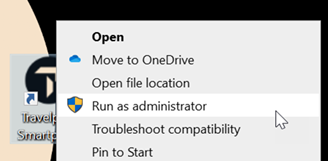
If the Run as administrator menu item:
Is displayed, you have Windows administrative rights.
Is not displayed, your Microsoft credentials are not configured for administrative rights. Please contact your agency’s Travelport Smartpoint Administrator or technical support for assistance.
There are also several types of installation files and corresponding installation guides. See Installation Options and Installation Guides for more information about these options.